
Download Windows Greeting Card Maker – Free, Easy, and Secure Card‑Design Tool
Overview
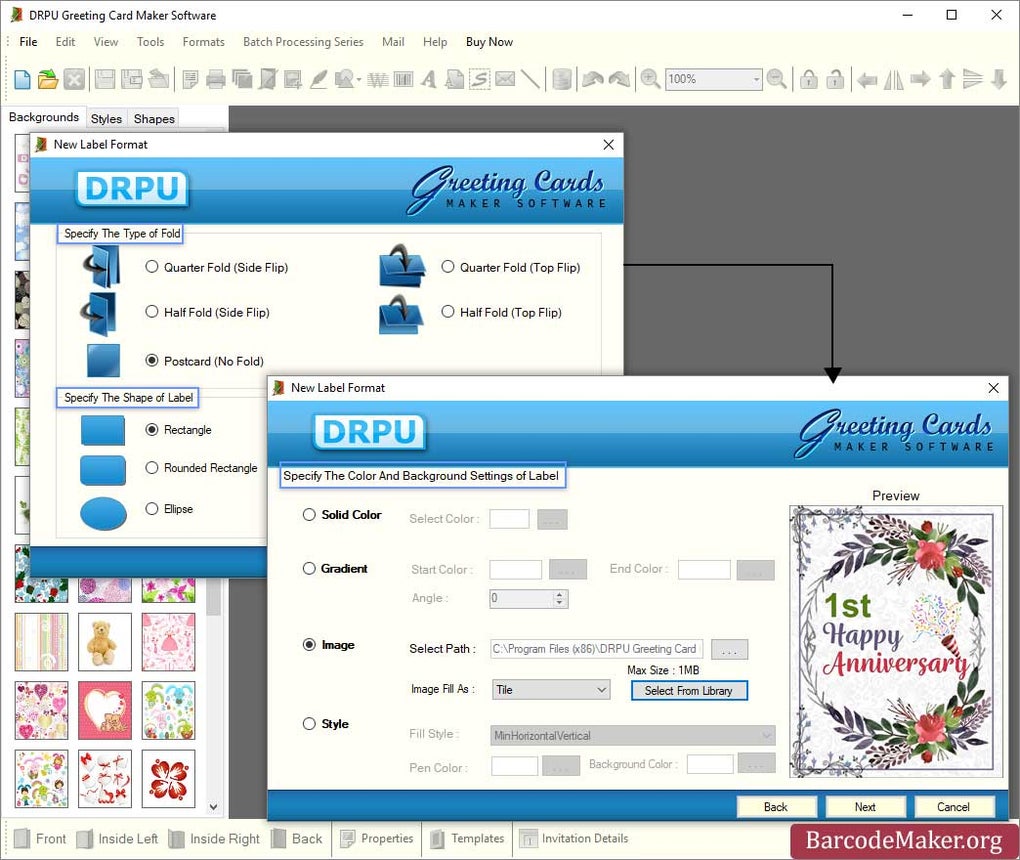
Windows Greeting Card Maker is a versatile desktop application that puts professional‑grade card design into the hands of anyone who uses a Windows PC. Whether you’re celebrating birthdays, holidays, anniversaries, or a simple “thank you,” the program supplies a library of pre‑designed templates that can be fully customized or lets you start from a blank canvas. The interface is deliberately simple: a navigation pane on the left lists themes, while the central workspace shows the active card.
Drag‑and‑drop assets, edit text layers, change colors, and add your own photos or graphics with just a few clicks. Once the design is complete, you can export the card as a high‑resolution PDF, JPEG, or PNG, print it directly from the software, or share it via email or social media straight from the main menu. The trial version gives you a taste of the full feature set, and a one‑time license purchase unlocks unlimited templates, premium fonts, and advanced export options.
Built on a secure Windows framework, the app receives regular updates to keep it compatible with the latest OS releases and to introduce fresh seasonal templates each year.
Key Features that Make Card Design a Breeze
- Extensive Template Library: Over 200 ready‑made designs covering birthdays, Christmas, Valentine’s Day, weddings, graduations, and more. Each template is fully editable, so you can replace images, change color schemes, or modify layouts without any design experience.
- Intuitive Drag‑and‑Drop Editor: A visual workspace where elements snap into place, offering precise alignment guides and automatic layering to keep your design tidy.
- Custom Asset Import: Upload personal photos, vector icons, or custom fonts. The app supports common image formats (JPG, PNG, SVG, BMP) and TrueType/OpenType fonts.
- Rich Text Styling: Choose from more than 100 fonts, apply kerning, line spacing, shadows, outlines, and text effects like emboss or gradient fills.
- High‑Resolution Export Options: Save your card as PDF/X‑1a for print‑ready quality, or as JPEG/PNG for quick sharing online. DPI settings up to 300 ppi ensure crisp output.
- One‑Click Printing & Direct Sharing: Integrated print dialog works with most home and office printers, while built‑in email and social sharing shortcuts let you send e‑cards instantly.
- Seasonal Updates: New template packs are released quarterly, keeping your library fresh with the latest trends and holiday themes.
- Secure Trial & License Management: The trial mode watermarks output but does not collect personal data. License activation is handled locally, ensuring privacy.
Beyond the listed capabilities, Windows Greeting Card Maker also supports multi‑page projects, allowing you to design a full set of matching invitations, thank‑you cards, and RSVP sheets within a single file. The built‑in alignment tools make it easy to maintain visual consistency across all pages, which is especially handy for event planners or small businesses that need a cohesive brand look. Additionally, the software includes a handy “undo/redo” stack and a history panel, so you can experiment fearlessly without losing previous versions of your design.
Installation, Setup & Daily Workflow
Getting started with Windows Greeting Card Maker is straightforward, even for users who are not tech‑savvy. Follow these steps to install and begin creating cards within minutes:
Step‑by‑Step Installation
- Download the Installer: Click the Download button on the official product page. The file is a small
.exe(approximately 45 MB) that is digitally signed for security. - Run the Installer: Double‑click the downloaded file. Windows SmartScreen will verify the signature and prompt you to allow the program to make changes. Accept the prompt to continue.
- Choose Installation Options: The wizard lets you select a destination folder (default is
C:\Program Files\Windows Greeting Card Maker) and whether to create a desktop shortcut. - Complete Installation: Click Install. After a brief progress bar, the application launches automatically, presenting the trial welcome screen.
- Activate License (Optional): If you have purchased a license, click Enter License Key in the menu, paste the key, and confirm. Full features unlock instantly.
Typical Daily Workflow
Once installed, the day‑to‑day process mirrors the logical flow of a design project:
- Select a Template: Open the left‑hand panel, filter by occasion or style, and double‑click a template to load it.
- Customize Elements: Click any image placeholder to replace it with your own photo. Use the text tool to edit greetings, change fonts, and adjust colors. Drag shapes, stickers, or decorative lines from the Assets library onto the canvas.
- Fine‑Tune Layout: Activate the Grid & Guides overlay for precise alignment. Use the Layer Manager to reorder elements, lock backgrounds, or group objects.
- Preview & Export: Click Preview to see a full‑screen view. When satisfied, choose Export → PDF (Print‑Ready) or JPEG (Web). Set DPI, file name, and destination folder.
- Print or Share: From the File menu, select Print to send the card to a connected printer, or use Share → Email to attach the file directly to a new message.
All settings are saved automatically, so you can close the program and return later without losing progress. The built‑in Recent Projects list lets you pick up where you left off in seconds. For power users, the Preferences dialog offers options to set default export formats, adjust UI scaling for high‑DPI monitors, and enable automatic update checks.
Compatibility, Pros & Cons
Supported Operating Systems
Windows Greeting Card Maker runs on Windows 10 (64‑bit) and later, including Windows 11. The installer detects the appropriate system architecture and installs the matching binaries. Minimum system requirements are modest: a 1 GHz processor, 2 GB RAM, and 200 MB of free disk space. The application is optimized for both standard and high‑resolution displays, scaling cleanly on 4K monitors.
Pros
- User‑Friendly Interface: No steep learning curve; beginners can produce polished cards within minutes.
- Rich Template Library: Hundreds of designs keep you covered for any occasion.
- High‑Quality Export: Print‑ready PDFs at 300 dpi guarantee professional results.
- Secure Trial Model: No hidden telemetry; the trial only adds a watermark.
- Regular Updates: Seasonal template packs and bug‑fix releases keep the software fresh.
Cons
- Windows‑Only: No native macOS, Linux, Android, or iOS versions, limiting cross‑platform usage.
- One‑Time License Cost: While affordable, the purchase is required for full feature access.
- Limited Cloud Integration: No built‑in cloud storage; users must manage files locally or use third‑party services.
Overall, the balance of ease‑of‑use and professional output makes Windows Greeting Card Maker a compelling choice for hobbyists and small business owners alike. The lack of a macOS version is a drawback for mixed‑OS households, but the Windows ecosystem’s dominance in home and office environments mitigates this limitation for most target users.
FAQ & Final Thoughts
Is the trial version watermarked?
Yes. The free trial adds a subtle “Trial Version” watermark to exported cards. Purchasing a license removes the watermark and unlocks all premium templates.
Can I import my own fonts?
Absolutely. The software supports TrueType (.ttf) and OpenType (.otf) fonts. Simply place the font file in the designated “Fonts” folder inside the application directory, then restart the program to see it in the font picker.
What export formats are available?
You can export cards as high‑resolution PDF, JPEG, or PNG. The PDF option includes bleed and crop marks for professional printing, while JPEG and PNG are ideal for online sharing.
Is there a way to batch‑print multiple cards?
Yes. After creating several cards, use the Batch Print feature under the File menu. Select the desired cards, set printer preferences, and the software sends them to your printer in sequence.
Will future Windows updates break the app?
The developer releases compatibility patches shortly after major Windows updates. Enabling “Automatic Updates” within the Preferences dialog ensures you receive these patches promptly.
In summary, Windows Greeting Card Maker offers a well‑rounded solution for anyone looking to produce beautiful, personalized greeting cards without the hassle of professional design software. Its extensive template library, straightforward drag‑and‑drop editor, and high‑quality export options make it suitable for casual users, families, and small enterprises alike. While the platform is limited to Windows, the program’s performance, security, and regular updates compensate for the missing cross‑platform support. If you enjoy creating bespoke cards for holidays, birthdays, or special events, the modest one‑time license fee is a worthwhile investment that unlocks unlimited creativity.
Ready to start designing? Download the Windows Greeting Card Maker trial now, explore the built‑in templates, and see how quickly you can craft a stunning card that will impress friends and family. Upgrade to the full version whenever you’re ready to remove the watermark and access premium assets – the process is seamless and the results are instantly rewarding.







